
Delete a single photo
- Open the photo in the Photos app.
- Tap the trash icon.
- Confirm with Delete Photo.
Delete many photos at once
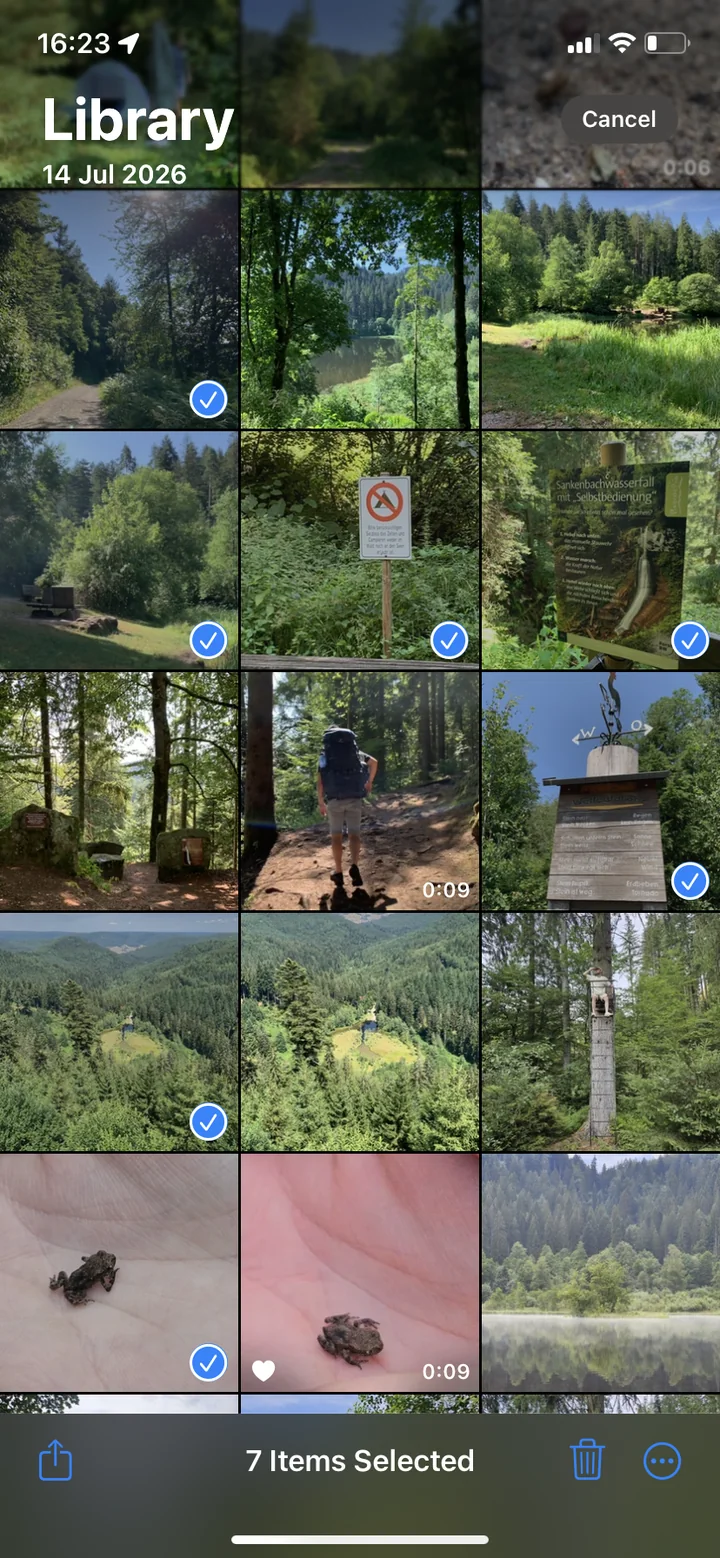
- Open the Library or an album in the Photos app.
- Tap Select in the top right.
- Tap the first photo and drag your finger across the others without lifting it. At the top or bottom edge, the view keeps scrolling.
- Tap the trash icon at the bottom and confirm.
Delete all photos
If you really want to delete all photos, it depends on whether they should stay in iCloud. Every method, only from the iPhone, from iCloud too, or before selling, is in the guide How to delete all photos from iPhone.
Back up your photos first, for example to a computer. With iCloud Photos on, they are otherwise also deleted from iCloud and all your devices.
What happens with iCloud?
If iCloud Photos is on, a deleted photo also disappears from iCloud and from your iPad or Mac. What that means and how to remove photos from your iPhone only is covered in How to delete photos from iCloud. If you want to keep photos, just not on your iPhone, back them up first to a PC or to a Mac.
A better way to sort: delete photos with a swipe
The Photos app is fast, but there is a catch: while selecting you only see small thumbnails. Especially with many similar shots, it is easy to delete one you wanted to keep, or to keep everything because you are unsure.
It is faster with a swipe app like PhotoDelete. You see every photo full size and decide in a second: swipe left to delete, swipe right to keep. Your library is sorted by month, with progress for every month, so you always know where you left off. Every swipe can be undone, and you review your selection before anything is deleted. See how swiping works for all the details.
Swiping month by month is free. Pro adds categories such as “Largest Files”, “Duplicates”, videos, screenshots and Live Photos.
Delete photos permanently
Deleted photos first go to the Recently Deleted album and stay there for up to 30 days, still using storage on your iPhone. If you want the space back right away, empty the album:
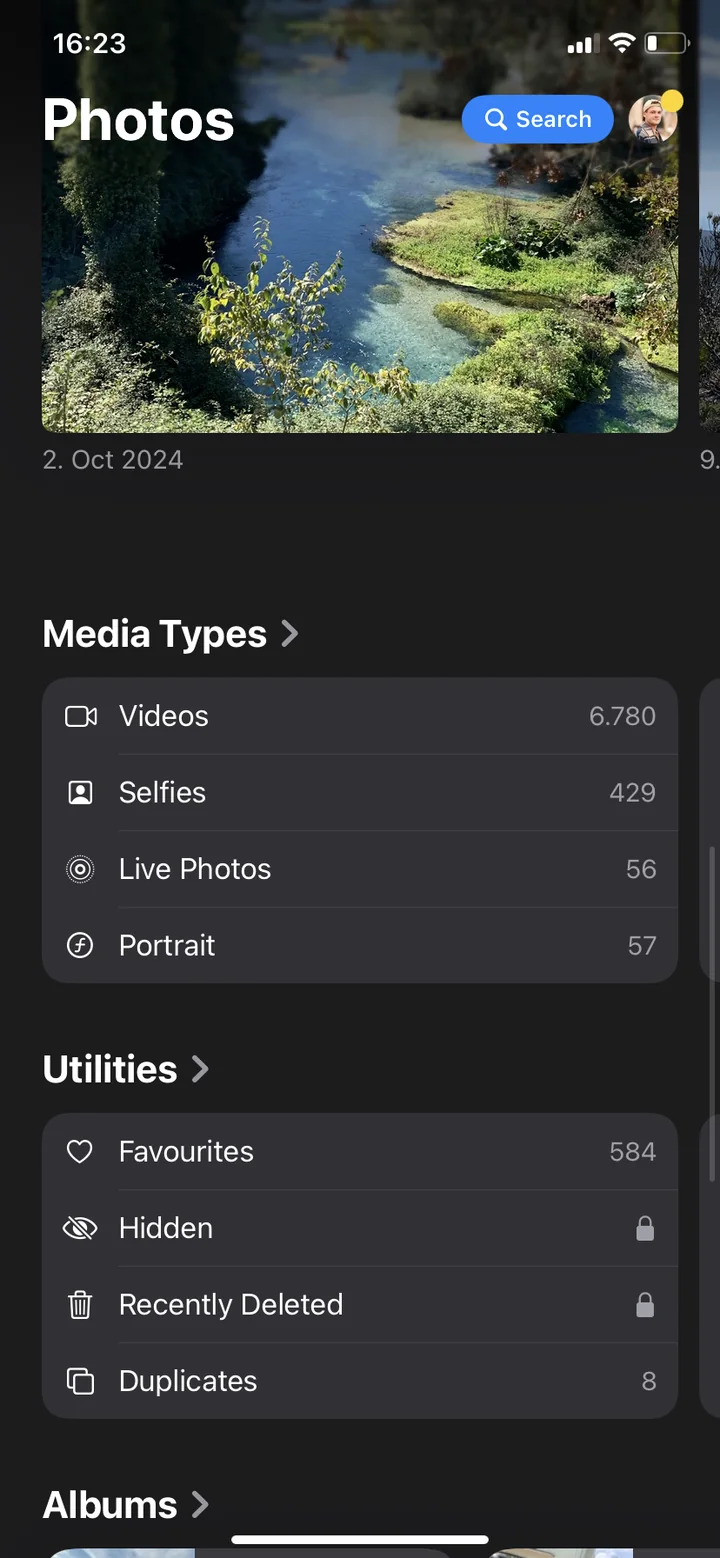
- Open the Photos app and tap Collections.
- Scroll down to Utilities and tap Recently Deleted.
- Unlock the album with Face ID, Touch ID or your passcode.
- Tap Select and then Delete All.
Deleted by mistake? How to get photos back
As long as a photo is in Recently Deleted, you can save it: open the album, tap the photo and choose Recover. Once the period is over, or once you have emptied the album, this is no longer possible. What you can still do then is covered in How to recover deleted photos on iPhone.
Common mistakes
- Forgetting Recently Deleted: without this step, deleted photos keep using storage for up to 30 days.
- Deciding by thumbnail: similar photos look the same in a small preview. Look at them full size before deleting. For lots of near-identical shots, see How to delete duplicate photos.
- Deleting everything without a backup: with iCloud Photos on, the photos are gone from iCloud too.
- Trying to do it all at once: month by month is more relaxed and you keep track.