
Five takes of a group photo until everyone has their eyes open. A burst of the dog mid-jump. Plus a few pictures that are in your library twice for some reason. They are hard to find one by one, spread across thousands of photos. The Duplicates category finds them in one pass and shows them to you as groups.
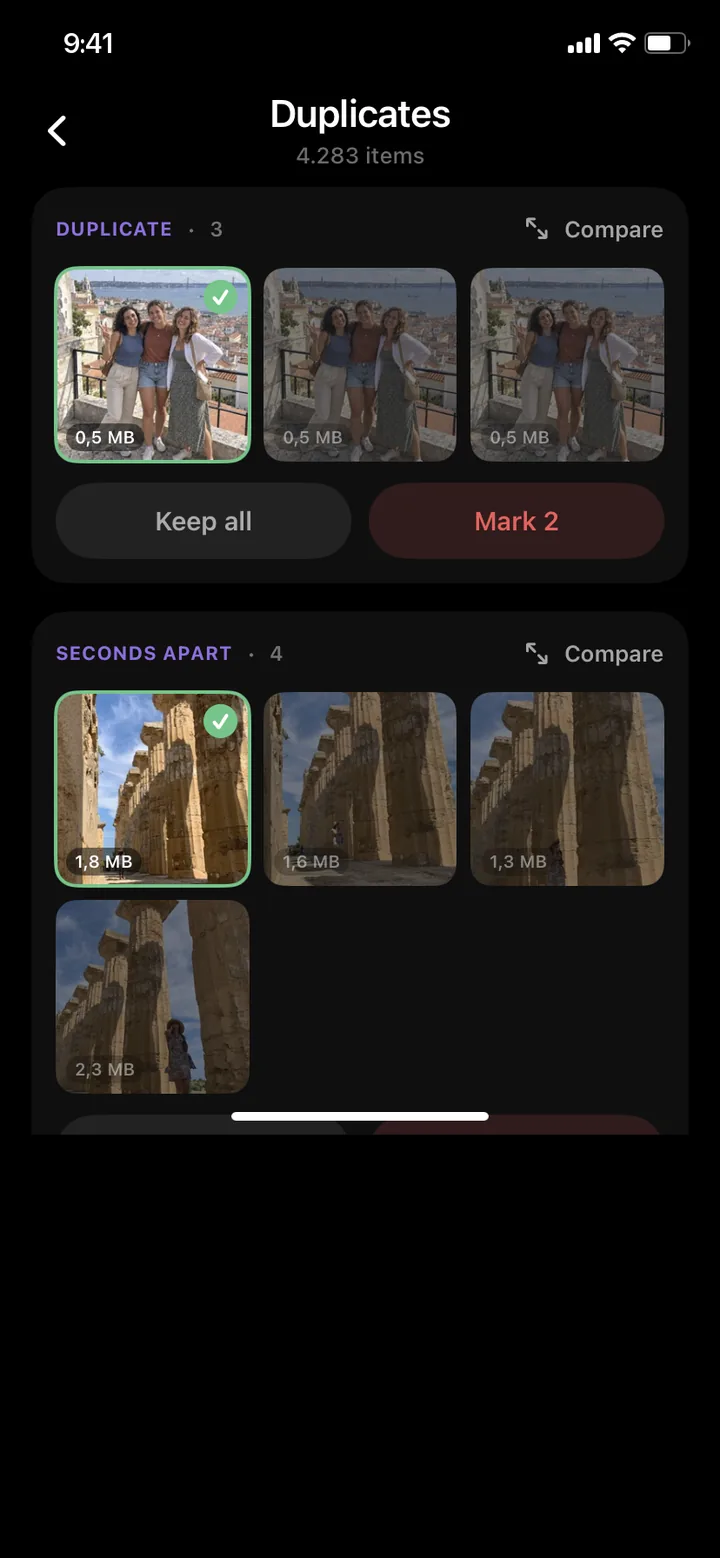
Which photos PhotoDelete groups
The search covers your whole library, and each photo ends up in one group at most. Every group has a label, so you see right away why the pictures belong together.
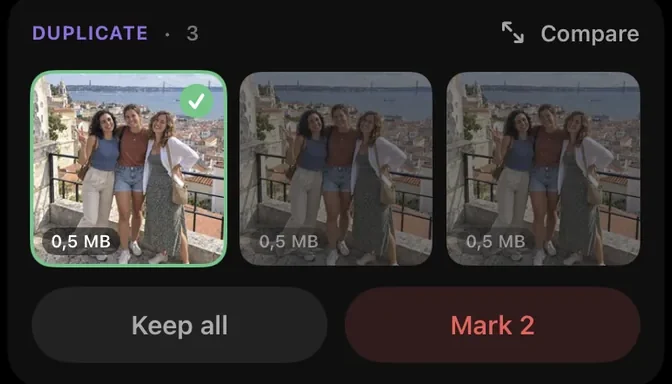
1. Duplicate
The same file more than once in your library, as a photo or a video. PhotoDelete only shows something as a duplicate if it really is the same shot, and you see every group yourself before anything is deleted.
2. Burst
A real burst you shot with the camera’s shutter. iOS marks bursts itself. PhotoDelete shows you every picture of the burst, including the ones that hide behind a single thumbnail in the Photos app.
3. Seconds apart
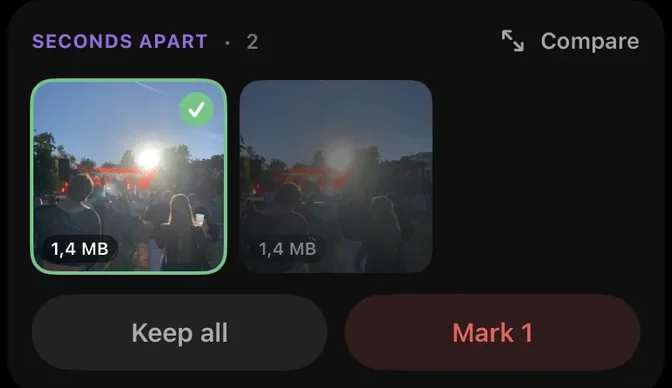
Several photos you took of the same moment, one right after the other. These are the typical multiple takes: the group photo, the meal, the sunset. Instead of hunting for them one by one in your library, you see them side by side and keep the one you like.
Which photo stays: the suggestion
In every group one photo is already set to stay, shown by the green check. All others are marked for deletion. The suggestion follows three fixed rules, in this order:
- Favorites always stay. Photos you marked with a heart are never suggested for deletion, even if there are several.
- Bursts keep the existing pick. If you picked pictures in a burst or iOS chose a key photo, exactly that one stays. That is information, not a guess.
- Otherwise the first shot. For duplicates that is the original. For photos seconds apart, the picture the moment started with.
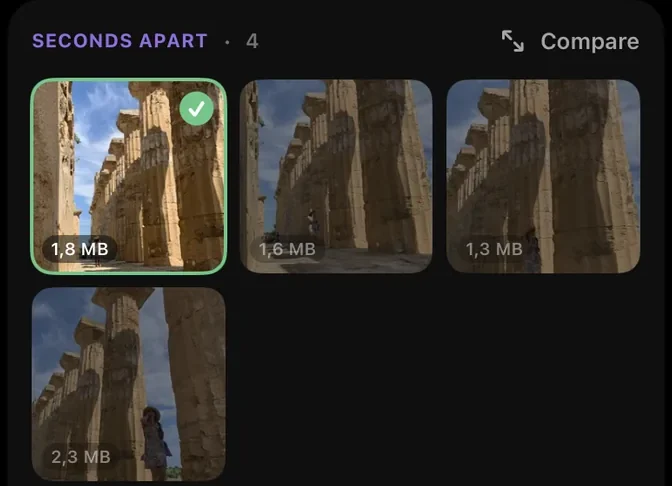
So PhotoDelete doesn’t claim to know the most beautiful photo. The suggestion is a starting point, so in most groups you only need to confirm. Where it doesn’t fit, you change it with a tap.
How to clean up a group
- Open PhotoDelete and tap Duplicates. The number next to it shows how many photos and videos are in groups.
- Look at the first group. Tap a picture to keep it or mark it for deletion.
- For a closer look, tap Compare. The group’s photos open large, and you check sharpness, eyes and framing calmly.
- Tap Keep all if every picture should stay, or Mark. The number on the button shows how many pictures go on the deletion list.
- Go through the other groups the same way and finally tap Delete.
Decisions are made per group on purpose, not with a single button for everything. With thousands of pre-selected pictures nobody could see what they are confirming. Decided groups stay visible until you delete. Undo takes a decision back.
When you delete, iOS asks once more. The pictures then stay in Recently Deleted in the Photos app for up to 30 days and can be recovered there.
If storage space is what you are after, start with Largest Files. Large videos usually sit at the top there, and they free up far more than a few duplicate photos.
The order of the groups
Real duplicates come first. There are usually only a few, and the decision is obvious: nobody needs the same file twice. Bursts and photos seconds apart follow, newest first. With recent shots you still remember why you took them, and the next time you open the list, whatever is new sits at the top. PhotoDelete deliberately doesn’t sort by space saved, or the same large video groups would always be on top.
Your progress is saved
With large libraries the search takes a few seconds, and a bar shows the progress. PhotoDelete remembers the result and your decisions, even if you go back to the home screen or close the app. Groups you finished don’t come back.
If something changes in a group, for example because another copy appears later, that is a new combination and shows up in the list again. PhotoDelete checks new photos in the background, so you don’t have to wait.
PhotoDelete or Apple’s Duplicates album?
They complement each other, and it makes sense to use both. You find the Duplicates album in the Photos app under Collections → Utilities. It uses image analysis and therefore also finds copies in another resolution. It doesn’t show bursts or several takes of the same moment. The guide Delete duplicate photos on iPhone shows how to use it.
| Duplicates album | PhotoDelete | |
|---|---|---|
| Exact copies | Yes | Yes, videos too |
| Copies in another resolution | Yes | No |
| Bursts | No | Yes |
| Several takes of the same moment | No | Yes |
| What stays | The best version according to Apple | Favorites, your burst pick, otherwise the first photo |
Private on your iPhone
The search runs entirely on your iPhone. No photo is uploaded, and you don’t need an account. Only what you confirm gets deleted. Duplicates is part of PhotoDelete Pro.
