How to Find and Delete Duplicate and Similar Photos on iPhone

How to Find and Delete Duplicate and Similar Photos on iPhone

Your iPhone finds exact copies on its own. The many similar shots of the same moment need a different approach.

Updated:

PhotoDeleteSwipe to delete photos, no ads
Get
Download free on the App Store

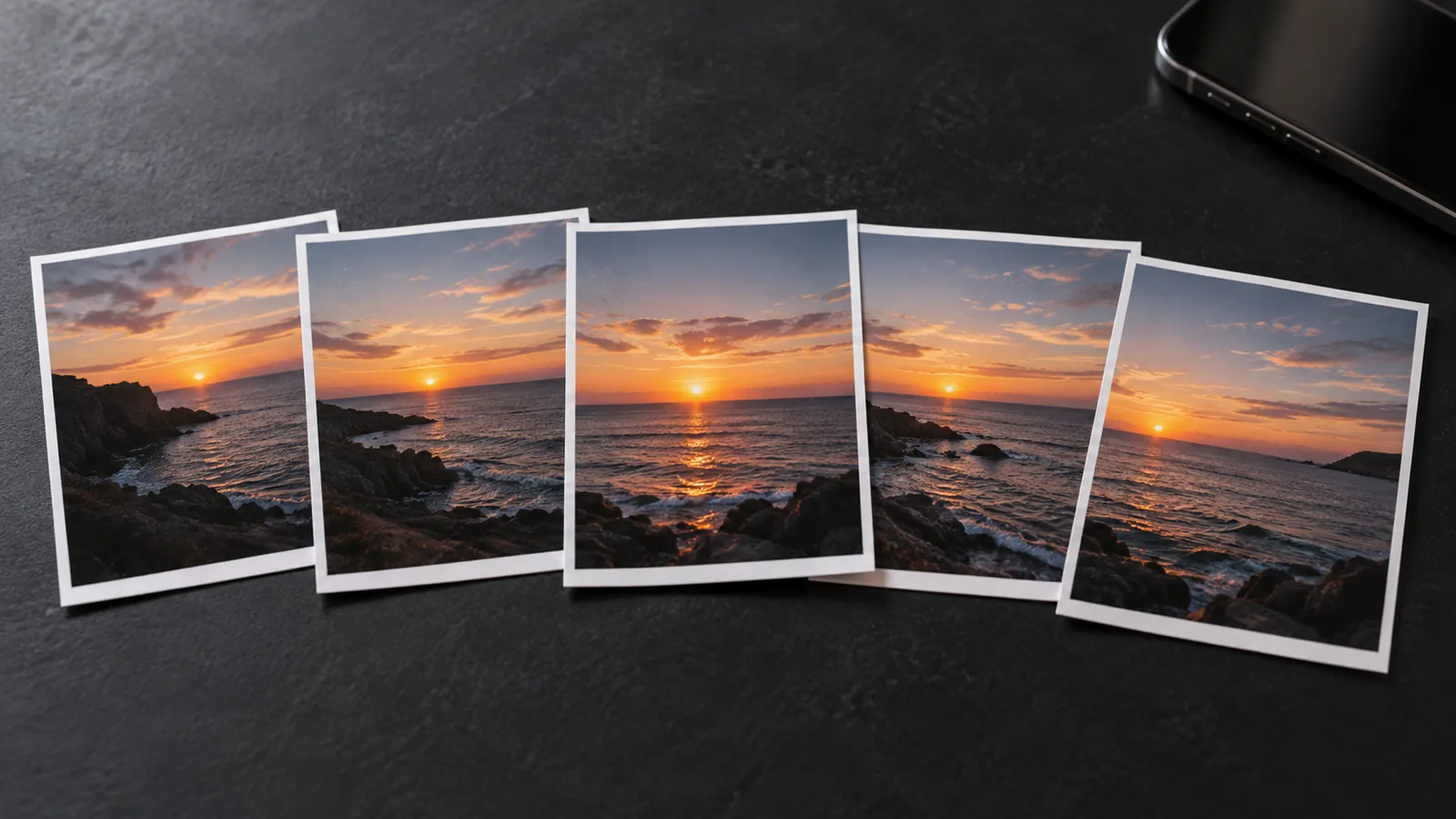
Five takes of the group photo until everyone’s eyes are open. Ten shots of the same sunset. A burst of the dog mid-jump. Almost every nice moment exists in several versions in your library, and later you usually look at only one.

Quick answer: deleting duplicate photos on iPhone

Open the Photos app and tap Collections → Utilities → Duplicates. Tap Merge next to a group and your iPhone keeps the best version. Similar shots of the same moment are not in that album. An app like PhotoDelete finds them, groups them and suggests which one to keep.

Delete duplicate photos with the Duplicates album

The Photos app detects photos and videos that are practically identical, for example the same photo saved twice or in a different resolution:

  1. Open the Photos app and tap Collections.
  2. Under Utilities, tap Duplicates.
  3. Tap Merge next to a group and confirm.
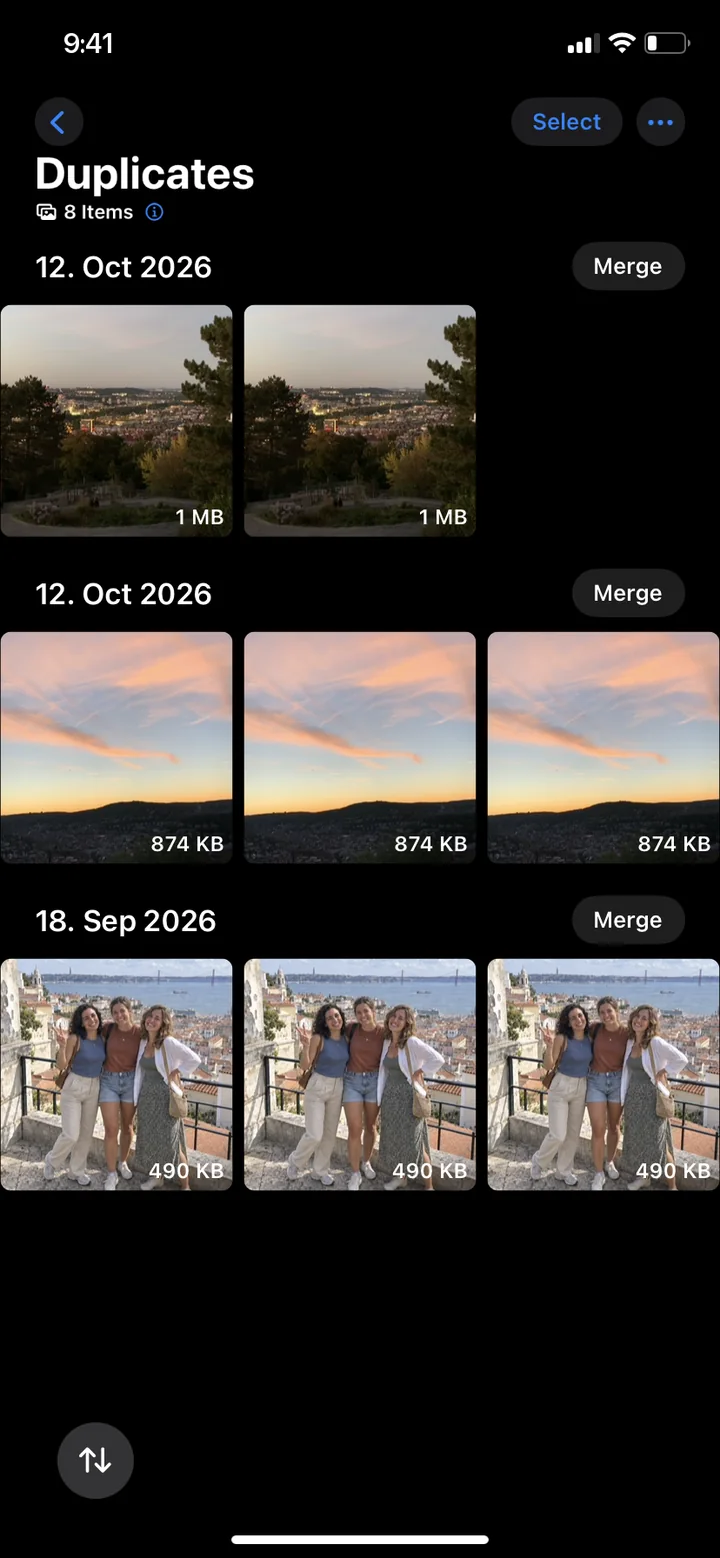
The Duplicates album only shows practically identical copies, each with Merge.

When merging, your iPhone keeps the best version and moves the other copies to Recently Deleted. The album only appears when your iPhone has found copies.

Clean up bursts

A burst shows up as one image in your library but often contains dozens of photos. Here is how to keep only the best:

  1. Open the burst in the Photos app and tap Burst (number).
  2. Tap the circle in the lower-right corner of each image you want to keep. Gray dots show the images your iPhone suggests.
  3. Tap Done and choose Keep Only Favorites. The rest of the burst is deleted.

What your iPhone doesn’t find: similar photos

The Duplicates album only shows copies. In most libraries, though, the bigger part is similar photos: different shots of the same moment.

  • Several takes: for group photos, food or sunsets, most people press the shutter more than once.
  • Bursts: swiping the shutter button to the left and holding it creates dozens of images in seconds.
  • Images from chats: photos you sent or received often end up in your library a second time.

Compare and delete similar photos with PhotoDelete

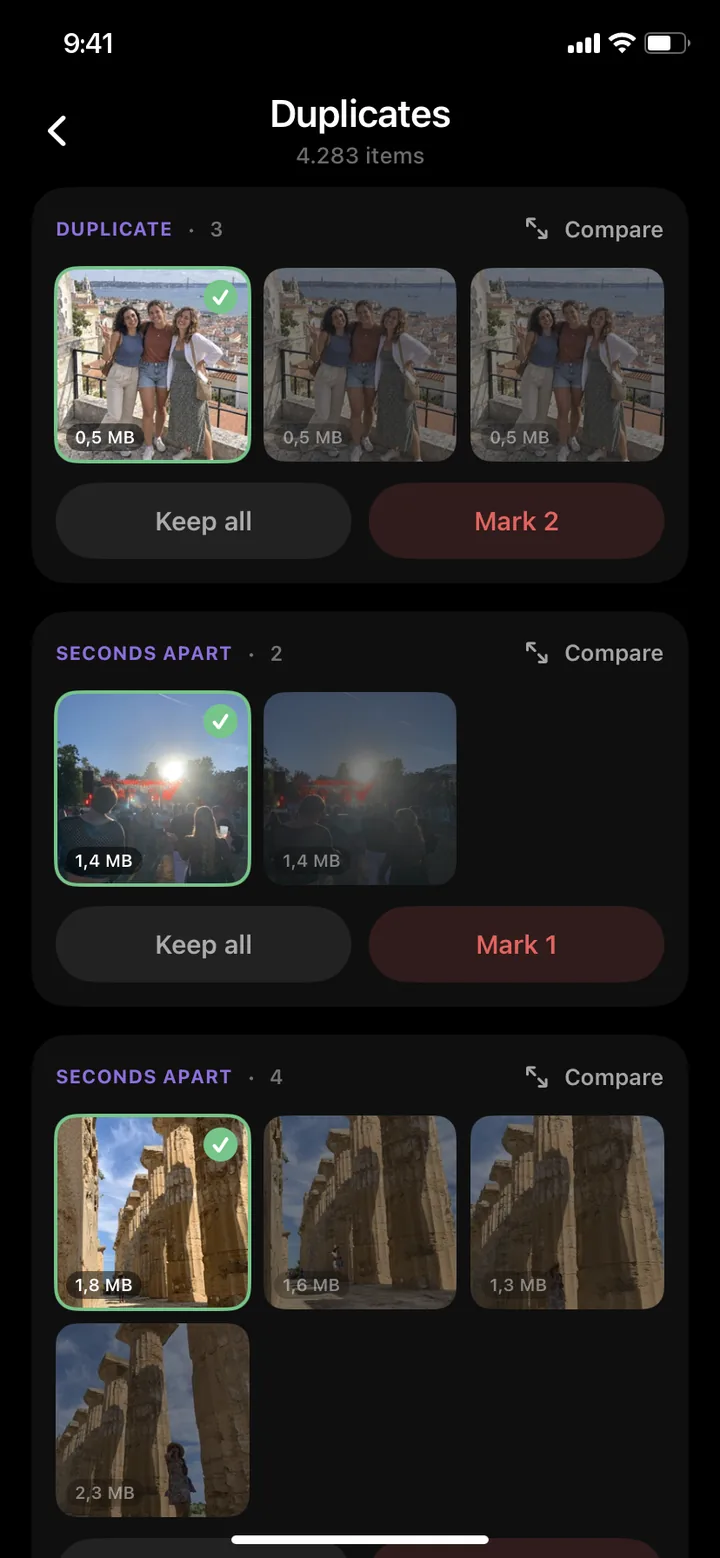
It is faster with an app like PhotoDelete that groups similar photos for you. The “Duplicates” category (Pro) finds duplicates, bursts and photos taken seconds apart and shows them as groups:

  1. Open PhotoDelete and tap Duplicates.
  2. Go through the groups one by one. Each group contains the photos of the same moment.
  3. PhotoDelete suggests which photo stays: your favorites, your pick in bursts, otherwise the first shot. Compare the photos and mark the rest for deletion.
  4. Review your selection and confirm.
Duplicate and similar photos grouped in PhotoDelete
PhotoDelete groups similar photos of the same moment so you can compare them.

That way you don’t have to scroll through thousands of photos looking for near-identical shots. It comes down to one decision per moment.

Download free on the App Store

Which photo to keep? 4 quick rules

  • Sharpness first: blurry and shaky shots go.
  • Eyes open, everyone in frame: for photos of people, the one where everybody looks good wins.
  • One, at most two per moment: you won’t look at more later anyway.
  • When in doubt, keep it: better one photo too many than an important one missing.

Afterwards: empty “Recently Deleted”

Merged and deleted photos first go to Recently Deleted and keep using storage there for up to 30 days. Empty the album under Photos app → Collections → Recently Deleted → Select → Delete All, and the space is freed. More ways to free up space are in our guide iPhone storage full.

Sources

Frequently asked questions

Where do I find duplicate photos on iPhone?

In the Photos app under Collections → Utilities → Duplicates. The album only appears when your iPhone has found copies.

Do I lose photos when merging duplicates?

No. When merging, your iPhone keeps the best version. The other copies go to Recently Deleted and can be recovered there for up to 30 days.

Does the iPhone find similar photos automatically?

No. The Duplicates album only shows images that are practically identical. Several takes of the same moment are not included. For those you need an app like PhotoDelete that groups bursts and photos taken seconds apart.

What is the difference between duplicate and similar photos?

Duplicates are copies of the same image. Similar photos are different shots of the same moment, for example five takes of the same group photo.

How do I delete burst photos on iPhone?

Open the burst, tap Burst (number), mark the images you want to keep and tap Done. Then choose “Keep Only Favorites”.

Which app finds similar photos on iPhone?

PhotoDelete groups duplicates, bursts and photos taken seconds apart under “Duplicates” and suggests which photo to keep in each group. You compare quickly, keep the best one and delete the rest. The app shows no ads.

The bottom line

Start with the Duplicates album and merge the copies. The real clutter, though, is similar photos: many takes of the same moment. Let them be grouped, compare briefly and keep only the best shot. Finally, empty Recently Deleted and the space is free. That is exactly what “Duplicates” in PhotoDelete is for.

Download free on the App Store