

Recover from Recently Deleted
Deleted photos and videos first go to the Recently Deleted album. They stay there for up to 30 days, then your iPhone removes them permanently.
- Open the Photos app and tap Collections.
- Scroll down to Utilities and tap Recently Deleted.
- Tap View Album and unlock it with Face ID, Touch ID or your passcode.
- Tap the photo and then Recover. For several photos, tap Select, mark the photos, tap the button with the three dots and then Recover.
- Confirm that you want to recover the photos.
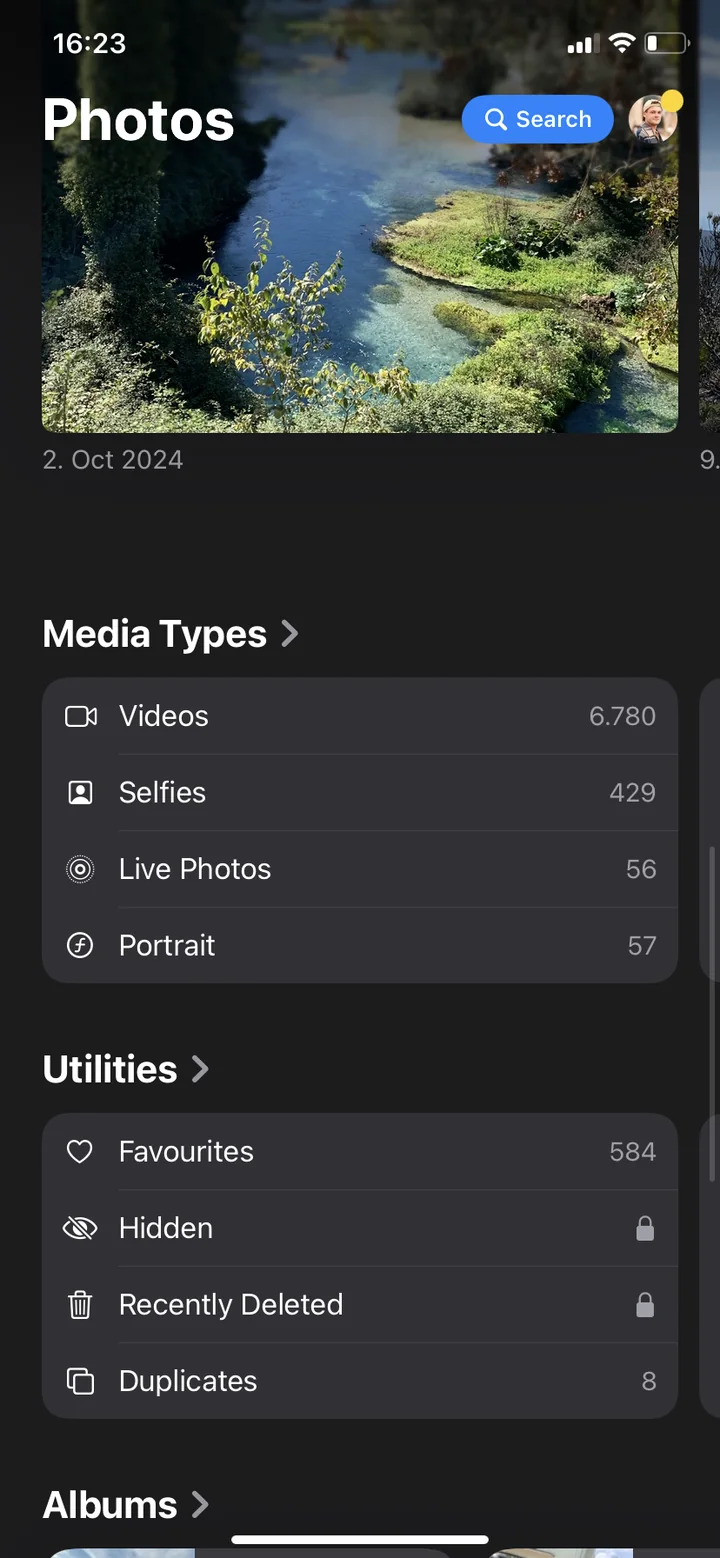
The photo reappears in its original place in your library. If you use iCloud Photos, it is back on your other devices too.
Apple names one exception itself: if you are over your iCloud storage limit, your device removes deleted photos right away. They never reach Recently Deleted. Photos you delete from a shared album are also gone immediately.
Recover on iCloud.com
If your iPhone is broken, lost or not at hand, you can also do this on a computer. This requires that iCloud Photos was turned on.
- Open icloud.com/photos in a browser and sign in with your Apple Account.
- Click Recently Deleted in the sidebar.
- Select the photos and click Recover.
With iCloud Photos, Recently Deleted is the same album on all your devices. Whatever is no longer there on your iPhone won't be on iCloud.com either.
Not in Recently Deleted? Photos often hide here
Many photos that seem to have vanished were never deleted. Check these places:
- Hidden album: hidden photos only appear there. You find it in the Photos app under Utilities → Hidden. If it is missing, the album itself is hidden. You can show it under Settings → Apps → Photos.
- Recovered album: since iOS 18 your iPhone looks for photos that are on the device but don't appear in your library, for example after a problem in a camera app. If it finds any, a Recovered album appears under Utilities. Careful: whatever you delete there is gone immediately.
- Shared Library: if you use an iCloud Shared Photo Library, the Photos app may only show one of the two libraries. Tap the profile button at the top right and choose Both Libraries.
- iCloud Photos turned off: if iCloud Photos was turned off or you are signed in with another Apple Account, photos that only live in iCloud are missing. Check under Settings → [your name] → iCloud → Photos that syncing is on.
After 30 days: only from a backup
If a photo is gone from Recently Deleted too, only copies elsewhere remain. Go through them in this order:
- Copies on a Mac, PC or drive: if you have transferred your photos to a Mac or to a PC before, they are there as separate files. This is the easiest way.
- Photos you sent: pictures you shared via WhatsApp or Messages are often still in the chat, on your side or the other person's.
- iCloud backup: photos are only included if iCloud Photos was turned off. With iCloud Photos they are synced instead of backed up.
- Backup on a computer: a backup you made with the Finder on a Mac or the Apple Devices app on Windows.
An iCloud or computer backup can only be restored as a whole. An iPhone that is already set up has to be erased first, and everything added after the backup is missing afterwards. So save the current state first, for example newer photos on a computer, before restoring an older backup.
Be careful with programs that promise to rescue permanently deleted photos from an iPhone. Many of them only read existing backups. Whatever is neither in Recently Deleted nor in a backup or a copy can usually no longer be recovered.
How to keep it from happening
Most photos get lost while cleaning up, not through a defect: you quickly select many pictures and catch one too many. A cleanup app like PhotoDelete protects you from this: swiping deletes nothing right away, it only marks photos. Every swipe can be undone, and before deleting you see your whole selection once more as a grid. Only after your confirmation and the iOS prompt do the photos move to Recently Deleted, where they stay recoverable as usual.
Common mistakes
- Emptying Recently Deleted too early: emptying the album right away to save space removes your safety net. Only empty it once you are sure.
- Restoring an old backup too quickly: it replaces everything on your iPhone. Newer photos without their own copy are gone afterwards.
- Cleaning up in the Recovered album: photos deleted there don't go to Recently Deleted, they are removed permanently right away.
- Waiting too long: after 30 days your iPhone clears Recently Deleted on its own. Recover important photos as early as possible.