
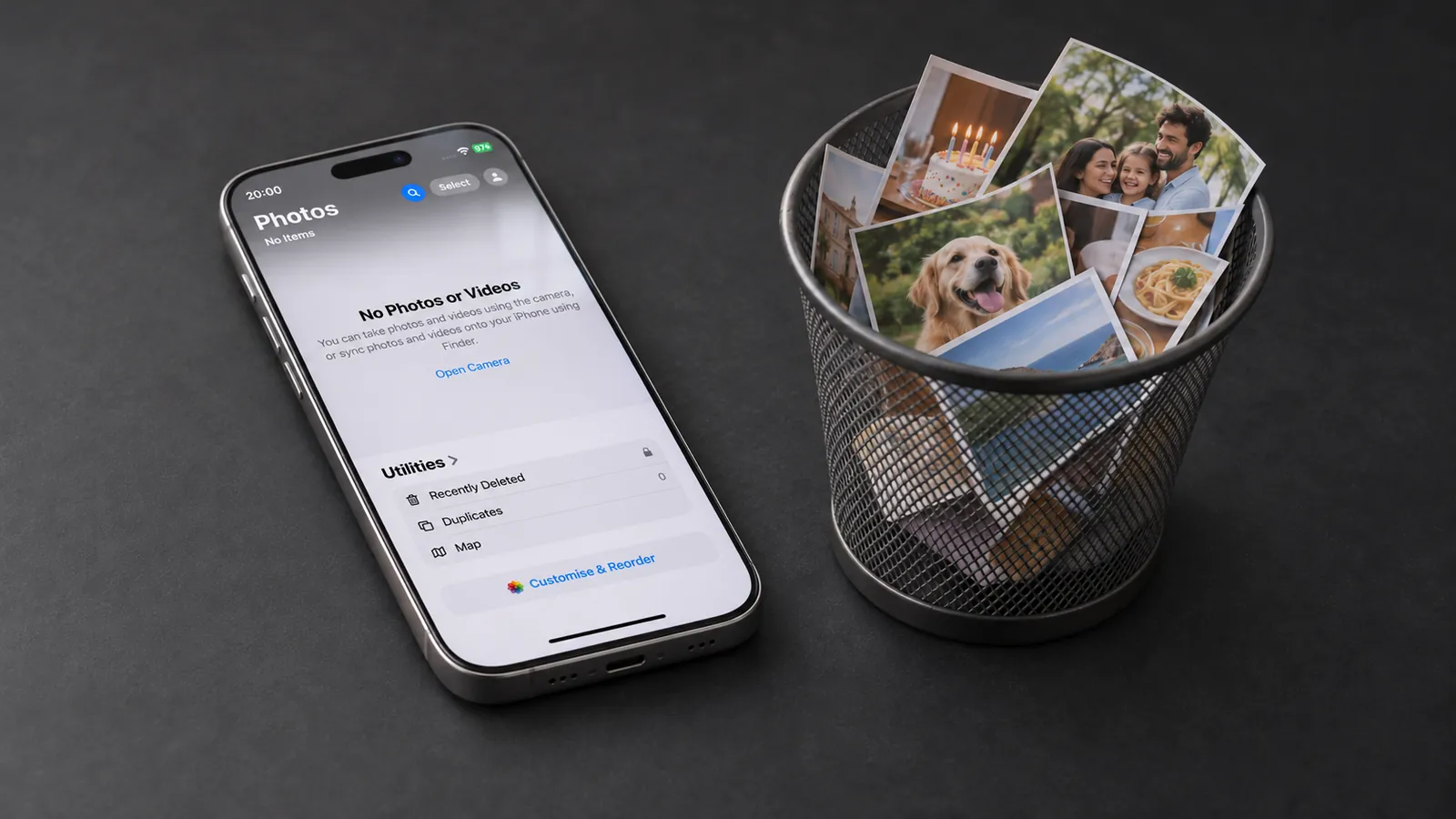
Before you start: check these 2 things
- Backup: Save every photo you want to keep, for example on a PC or on a Mac. Apple recommends this before deleting, too.
- Is iCloud Photos on or off? Check the Sync this iPhone switch under Settings → [your name] → iCloud → Photos. If it is on, every deletion also applies to iCloud and to your iPad or Mac.
Method 1: Delete all photos only from your iPhone, keep them in iCloud
This is the right method if you need space on your iPhone but want to keep your photos in iCloud. You don’t delete photos one by one, you disconnect the iPhone from iCloud Photos:
- Open Settings and tap your name.
- Tap iCloud, then under Saved to iCloud tap Photos.
- Turn off Sync this iPhone.
- Choose Remove from iPhone. The photos disappear from your iPhone and stay in iCloud.
From now on, your iPhone no longer syncs with iCloud Photos: new photos are not uploaded, and deletions on your iPhone no longer reach iCloud. You still see your photos on your other devices with iCloud Photos.
Method 2: Delete all photos in the Photos app
Without iCloud Photos, or if the photos really should be gone everywhere, delete them directly in the Photos app:
- Open the Photos app and go to your library.
- Tap Select.
- Swipe your finger across the photos to select many at once.
- Tap the trash button and confirm.
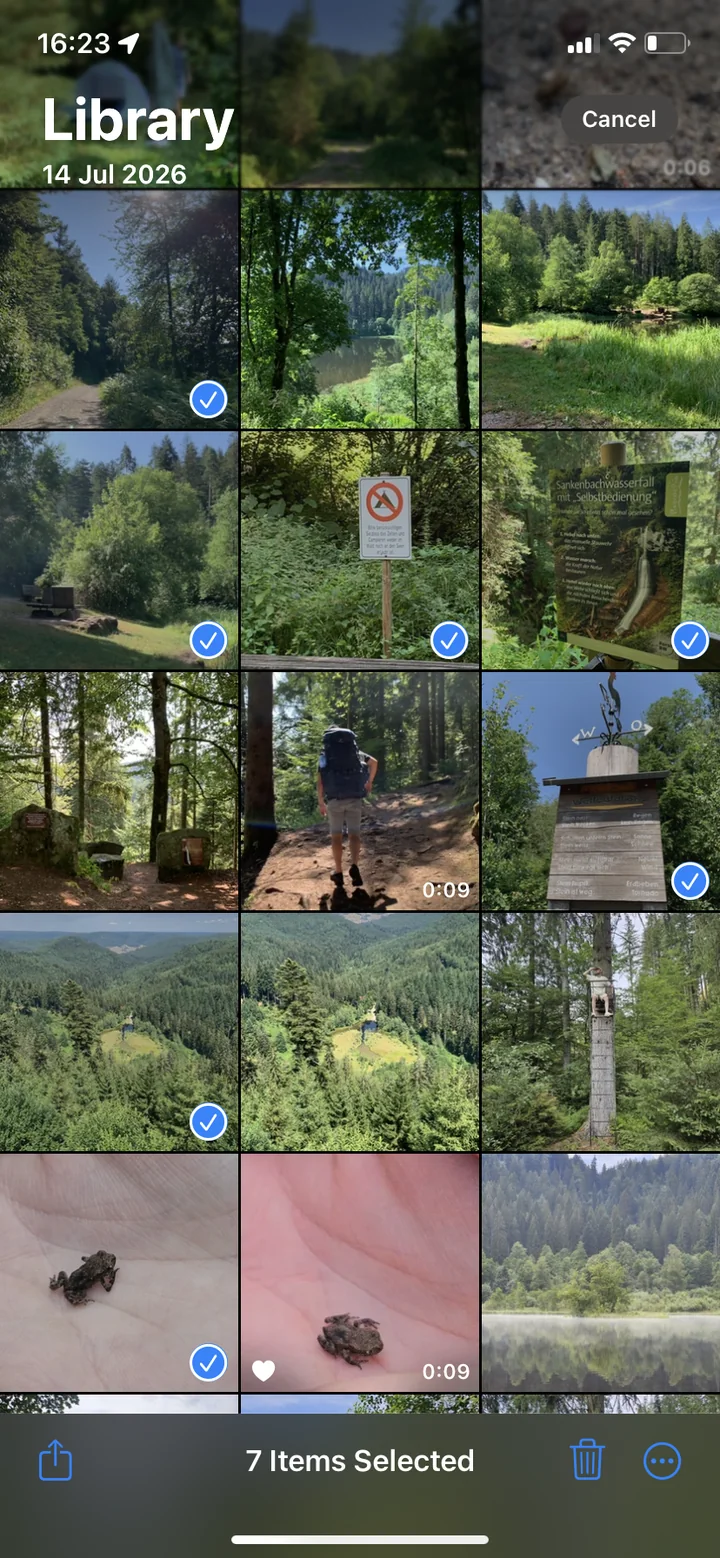
There is no “Select All” button in the library. With thousands of photos, selecting on the iPhone takes a long time. A Mac is much faster:
- With iCloud Photos: Open the Photos app on your Mac (with iCloud Photos and the same Apple Account). Click the first photo, then hold Shift and click the last one to select everything in between. When you delete them, iCloud Photos removes them from your iPhone too.
- Without iCloud Photos: Connect your iPhone to the Mac with a cable and open Image Capture. Select your iPhone and click Download All. After the import, you can choose to delete the photos from the iPhone. That way you also have a backup on your Mac.
With iCloud Photos on, this method also deletes the photos from iCloud and from all devices signed in with the same Apple Account.
Method 3: Delete all photos everywhere, including iCloud
If your photos should disappear from iCloud completely, there is a separate option for that. First download the originals you want to keep to a computer. If you own a Shared Photo Library, delete it first.
- Open Settings and tap your name.
- Tap iCloud, then Storage.
- Tap iCloud Photos, then Turn Off and Delete Photos.
Apple deletes the photos from iCloud 30 days later. Until then, you can undo everything with Undo Delete. Whatever is still on your iPhone afterwards, you delete as in method 2.
Afterwards: empty Recently Deleted
Deleted photos stay in the Recently Deleted album for 30 days and keep using storage until then. To get the space back right away, empty the album:
- Open the Photos app and tap Collections.
- Scroll down to Utilities and tap Recently Deleted.
- Unlock the album with Face ID, Touch ID or your passcode.
- Tap Select and then Delete All.
After that, the photos can no longer be recovered.
Before selling: reset your iPhone
If you give your iPhone away, deleting only the photos is not enough. Apple recommends resetting the iPhone to factory settings. This removes all photos, apps and data from the device, while your content in iCloud stays.
- Create a backup.
- Go to Settings → [your name], scroll down and tap Sign Out to sign out of your Apple Account.
- Go to Settings → General → Transfer or Reset iPhone.
- Tap Erase All Content and Settings and follow the instructions.
Before selling, don’t delete photos one by one while iCloud Photos is on. Otherwise they are gone from iCloud too. Resetting the iPhone, on the other hand, leaves your photos in iCloud untouched.
Delete everything? Often sorting out is enough
Many people who want to delete all their photos really just need space again. But if you delete everything, the photos that matter to you are gone too. Often a few large videos, duplicates and old screenshots take up most of the storage.
That is what swipe apps like PhotoDelete are for: you see every photo in full size and swipe left to delete and right to keep. Your gallery is sorted by month, so you work through it month by month and always know where you stopped. With Pro, the “Largest files” category shows the videos and photos that take up the most space, and duplicates and similar photos groups near-identical shots. Deleted photos go to Recently Deleted, just like in the Photos app.
Without Pro, you have a swipe limit with a waiting time. Pro is available as a weekly or yearly subscription or as a one-time purchase. There are no ads in any version.
Common mistakes
- Deleting everything in the Photos app with iCloud Photos on: The photos are then gone from iCloud and your other devices too. To keep them, use method 1.
- Forgetting Recently Deleted: Without this step, the storage stays used for up to 30 days.
- The trash button is gray: Photos you synced to your iPhone from a computer can’t be deleted directly in the Photos app. Stop the sync on the computer instead.
- Deleting without a backup: First check that all important photos are on a computer, a drive or in iCloud. What you can still do after deleting is explained in the guide Recover deleted iPhone photos.