
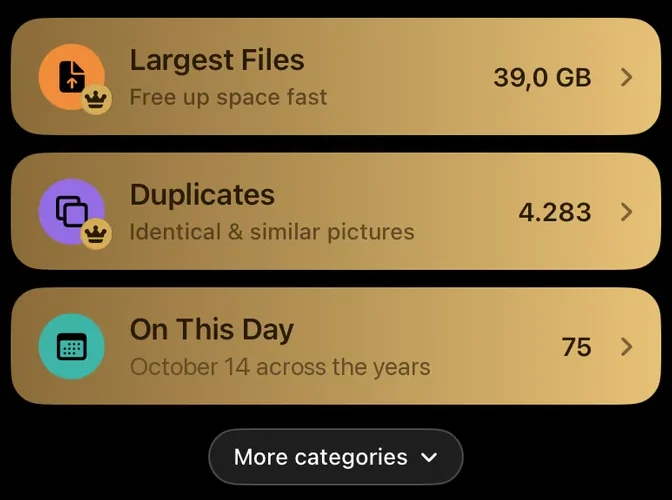
Going through your library from start to finish takes a long time before your storage changes. Most gigabytes sit in a few files: long videos, 4K recordings, slo-mo, screen recordings. The Photos app can’t sort by file size. Largest Files flips the order and starts where the most space is.
Why large files make such a difference
A photo is usually just a few megabytes. Videos are another order of magnitude. According to the iPhone’s camera settings, one minute of video takes roughly:
| 1 minute of video | Approximate size |
|---|---|
| 1080p at 30 fps | about 60 MB |
| 4K at 30 fps | about 170 MB |
| 4K at 60 fps | about 400 MB |
| Slo-mo 1080p at 240 fps | about 480 MB |
A single forgotten concert video can take as much space as hundreds of photos. Start with the largest files, and the first ten swipes often free up more than the next thousand. The guide iPhone storage full shows what else takes up space.
How Largest Files works
- On the home screen, tap Largest Files.
- The largest file in your library comes first, photo or video. The bottom right of the card shows how much space it takes.
- Swipe left to mark it for deletion or right to keep it, just like when you swipe by month. Videos play right on the card, so you know what you are deleting.
- Tap the trash icon at any time, review your selection and delete it in one go.

Photos and videos share one list, because only size counts. In practice the largest files are almost always videos: long recordings, 4K, slo-mo and screen recordings. Photos only appear further down, and only very large ones such as panoramas make it to the front.
PhotoDelete knows the size of every file without uploading anything. With very large libraries it builds the list from a quick estimate first and reads the exact sizes in the background, so you can start right away.
In batches of 800 files
The list comes in batches of 800 files. The top shows where you are, for example “1 / 800”. When a batch is done, PhotoDelete shows “Batch complete” and offers the next-largest 800 files.

You don’t have to finish a batch in one go. Tap the trash icon at any time, review your selection so far and delete it. Then keep swiping, or stop and continue another time. Once the files get so small that deleting barely pays off, you are done.
Your progress is saved. Close the app halfway through a batch and you continue at the same spot next time. What you already kept doesn’t come back in that batch.
Clean up by category
Sometimes you want to clean up by type rather than by size. That is what the other categories are for. You find them on the home screen under More categories:
- Videos: all videos in one place, no photos in between. Good for getting rid of old clips.
- Screenshots: old screenshots that pile up over the years. You usually need them briefly, then they stay in your library forever.
- Live Photos: your Live Photos in a session of their own.
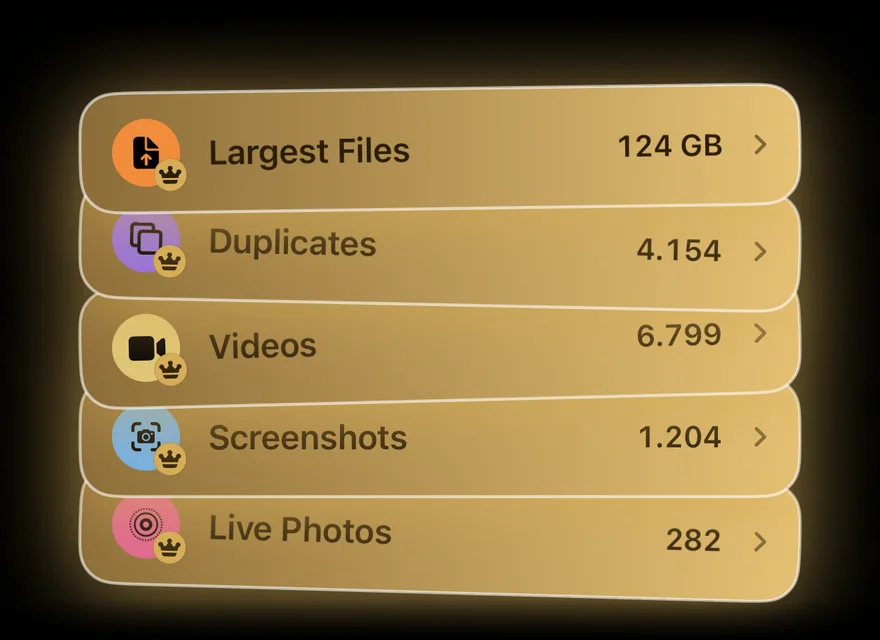
Every category works the same: swipe, review, delete. And each one remembers where you left off.
See what it saved
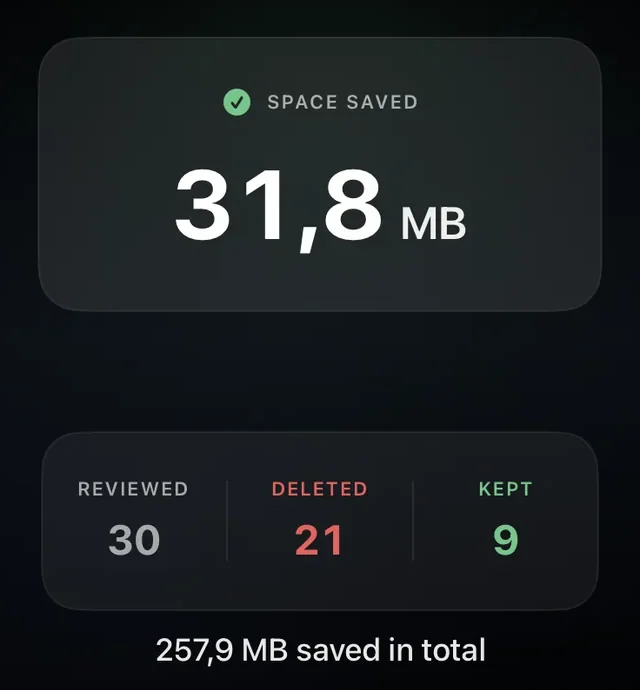
After every deletion PhotoDelete shows how much storage was freed and how many files you reviewed, deleted and kept.
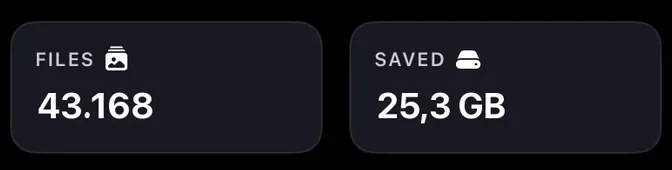
The home screen shows two tiles: Files shows how many photos and videos your library has, split by media type. Saved opens the statistics:
- Storage saved in total and how much of it comes from each category
- Reviewed, deleted and kept, plus the share you sorted out
- Your cleanup time and the year of the oldest deleted photo
Review first, then delete
Nothing is deleted while you swipe, only marked. Only when you review and confirm your selection does iOS ask once more and move the files to Recently Deleted, where they stay for up to 30 days. Largest Files and the other categories are part of PhotoDelete Pro.
