
In the Photos app you only see small thumbnails while sorting. With many similar pictures it is easy to delete the wrong one, or to keep everything just in case. PhotoDelete shows every photo large and lets you decide with one gesture: left to delete, right to keep. Swiping by month is free and has no ads. The guide Delete photos on iPhone shows how deleting works in the Photos app itself.

Month by month
Swipe by Month lists your library in months. Each month shows how many photos and videos it has and what percentage you have already reviewed. A pile of thousands of photos turns into many small, manageable portions. You can start another month at any time.
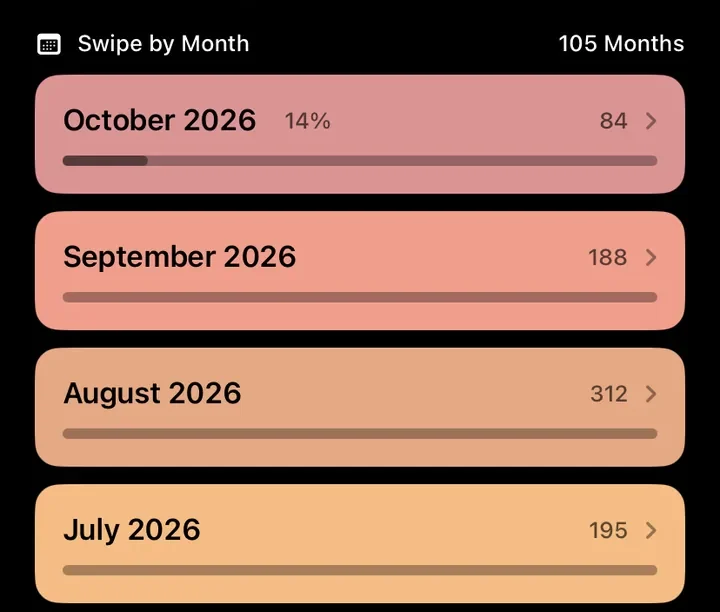
Under Month Sorting in the settings you choose the order: newest first, oldest first, fewest photos first or most photos first. Starting with the fullest months brings order fastest, starting with the smallest gives you a quick win.
Left to delete, right to keep
- Tap a month. The first photo appears large on a card.
- Swipe left to mark it for deletion. “Delete” appears on the card.
- Swipe right to keep it. Instead of swiping, you can also tap the buttons at the bottom.
- The next photo appears right away. The top shows how many photos the month has and which one you are on.

Below the card a bar shows how many photos you marked and kept in the current pass. In the middle sits the trash icon, and its number shows how many photos are marked right now. You don’t have to wait until the end of a month: tap it at any time, review your selection and delete it. Then simply keep swiping.

Undo: no swipe is final
Swiped too fast? Tap the arrow in the top right and the last swipe is taken back. The photo comes back and you decide again. You can do this step by step several times in a row, as far back as you like within the current pass. This works as long as the pass is still open. Once you have deleted your selection, it is finished: nothing can be rewound anymore, and you only see the kept photos again when you go through the month or category anew.

Your progress is saved
Every swipe is saved right away. Close the app, switch to another month or take a call, and next time you continue exactly where you were.
When a month is done, the list shows it. To go through it again later, for example because new photos were added, tap Review again. Photos deleted outside PhotoDelete in the meantime also disappear from your progress.
Before deleting: review your selection
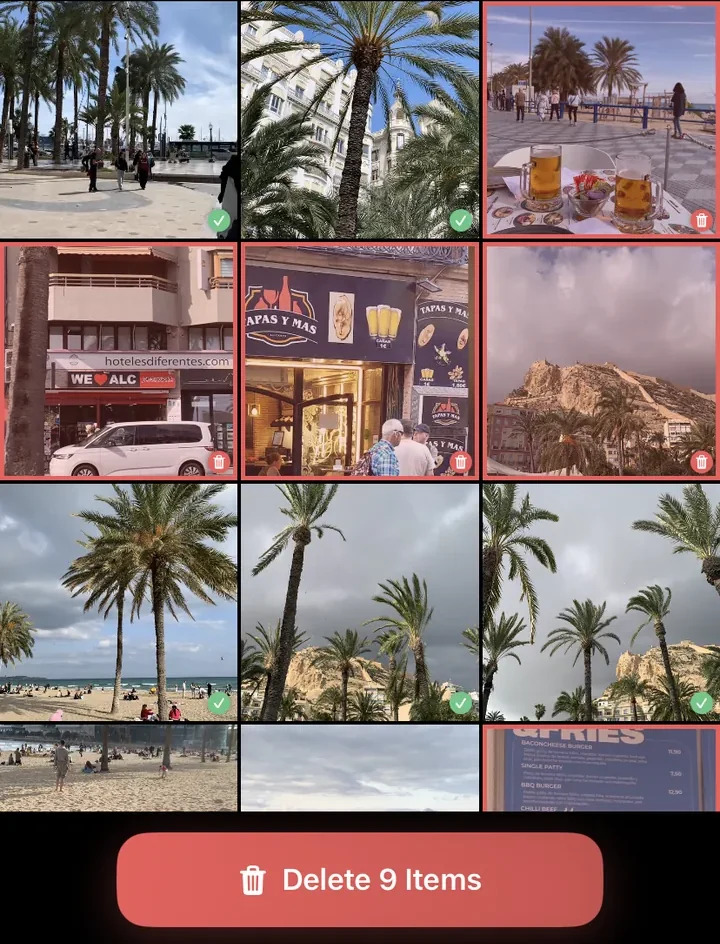
Nothing is deleted while you swipe, only marked. Tap the trash icon to review the current selection. You can do this at any time, even in the middle of a month:
- You see all marked photos and videos in a grid.
- Tap a picture to take it out of the selection or add it back.
- Tap the delete button at the bottom. It shows how many files will be deleted.
- iOS asks once more. Only then do the files move to Recently Deleted.
Afterwards PhotoDelete shows how much storage you freed up and how many photos you reviewed, deleted and kept. Deleted photos stay in Recently Deleted in the Photos app for up to 30 days and can be recovered there.
The whole process at a glance. Nothing is gone until you delete, and even then the photos usually stay in Recently Deleted for up to 30 days:
Everything on one card
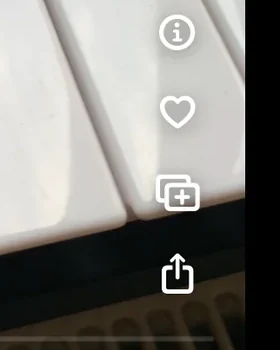
- Videos with sound: videos play right on the card, and one tap turns the sound on.
- Zoom: pinch to zoom into a picture and check sharpness and details.
- Info: size, date and device of every shot with one tap.
- Favorites: mark photos you love as a favorite on the spot.
- Album: the icon with the plus adds the photo to one of your albums, more on that in the next section.
- Share: share a photo you want to show someone right from the card.
Add photos to albums as you go
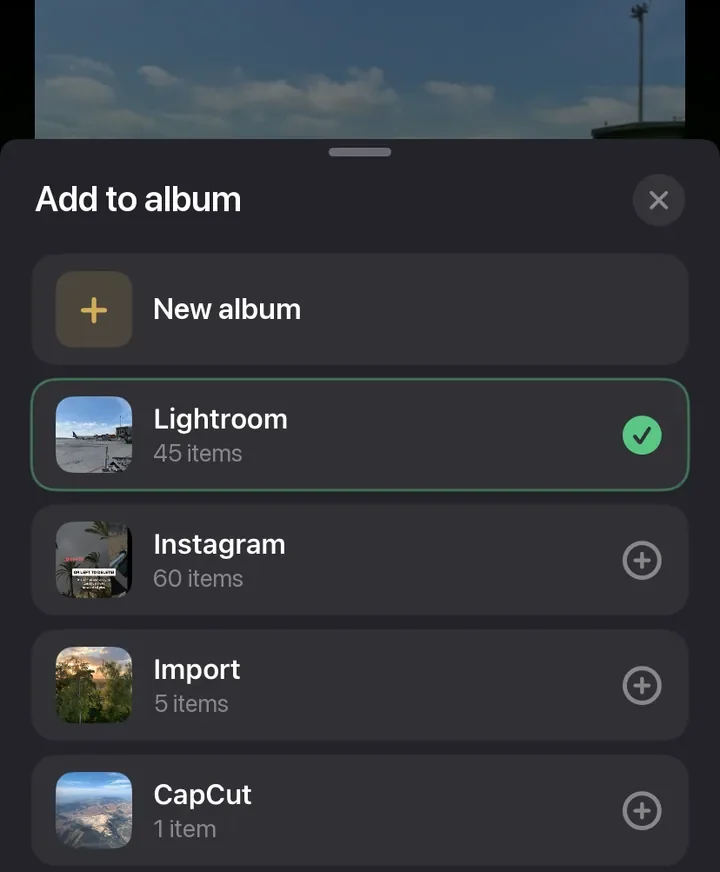
While sorting you come across photos you want to find again: vacations, family, recipes, documents. Tap the album icon on the card, and a list of your albums opens at the bottom:
- Tap an album to add the photo. You can choose several albums.
- A second tap takes the photo out again, so a mis-tap only costs one tap.
- If the right album is missing, create one right away with “New album” at the top.
In iOS an album is just a reference. The photo stays in your library and in its month and also appears in the album. Then you simply keep swiping.
In the categories too
You swipe the same way through Largest Files, Videos, Screenshots, Live Photos and On This Day. The same rules apply everywhere: undo, saved progress and a review before deleting. Only in Duplicates do you decide per group instead of per photo.
