
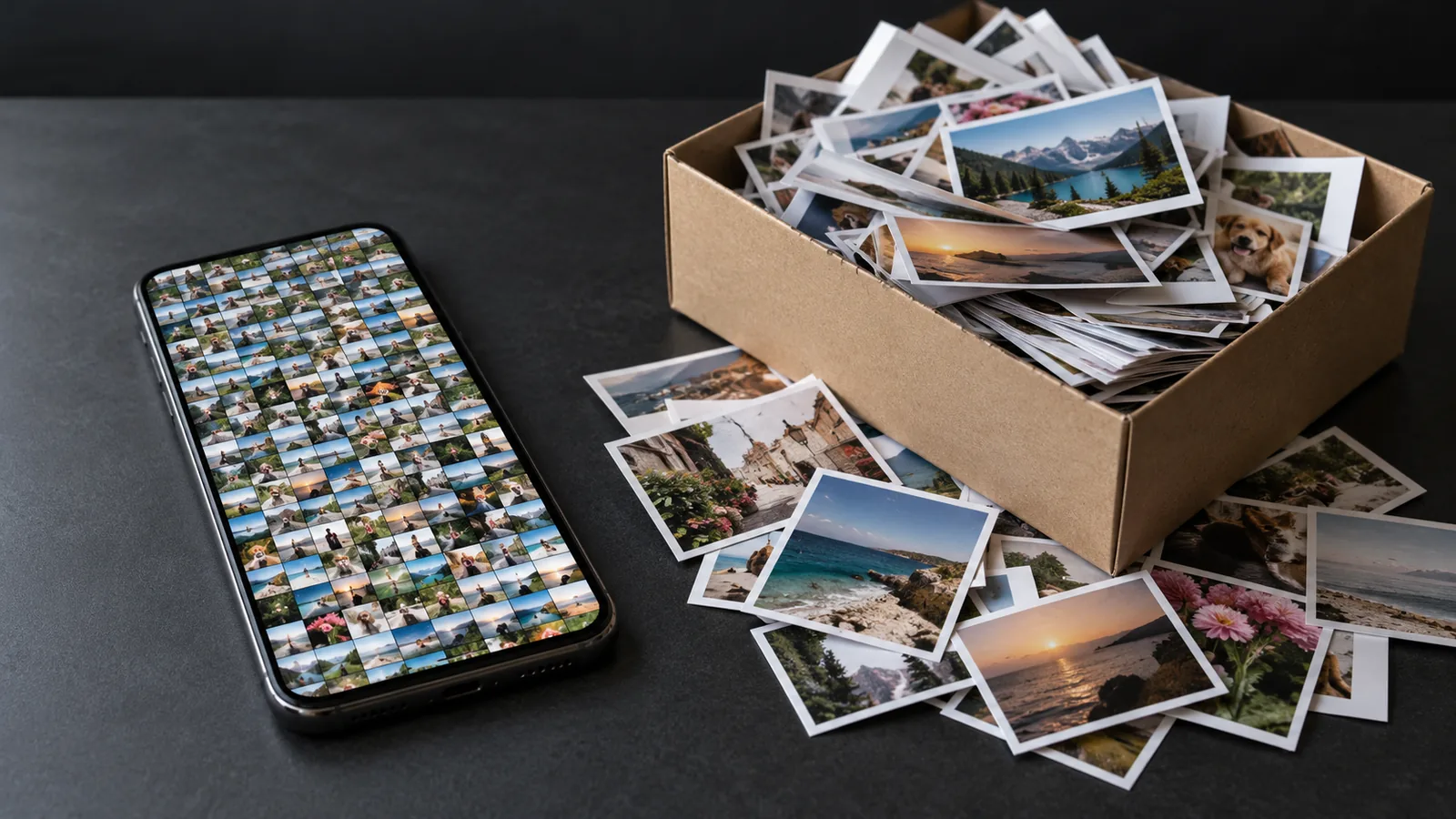
What is filling your iPhone storage?
- Open Settings → General → iPhone Storage.
- Wait a few seconds until the colored bar at the top has fully loaded.
- Below it you see all apps, sorted by size.
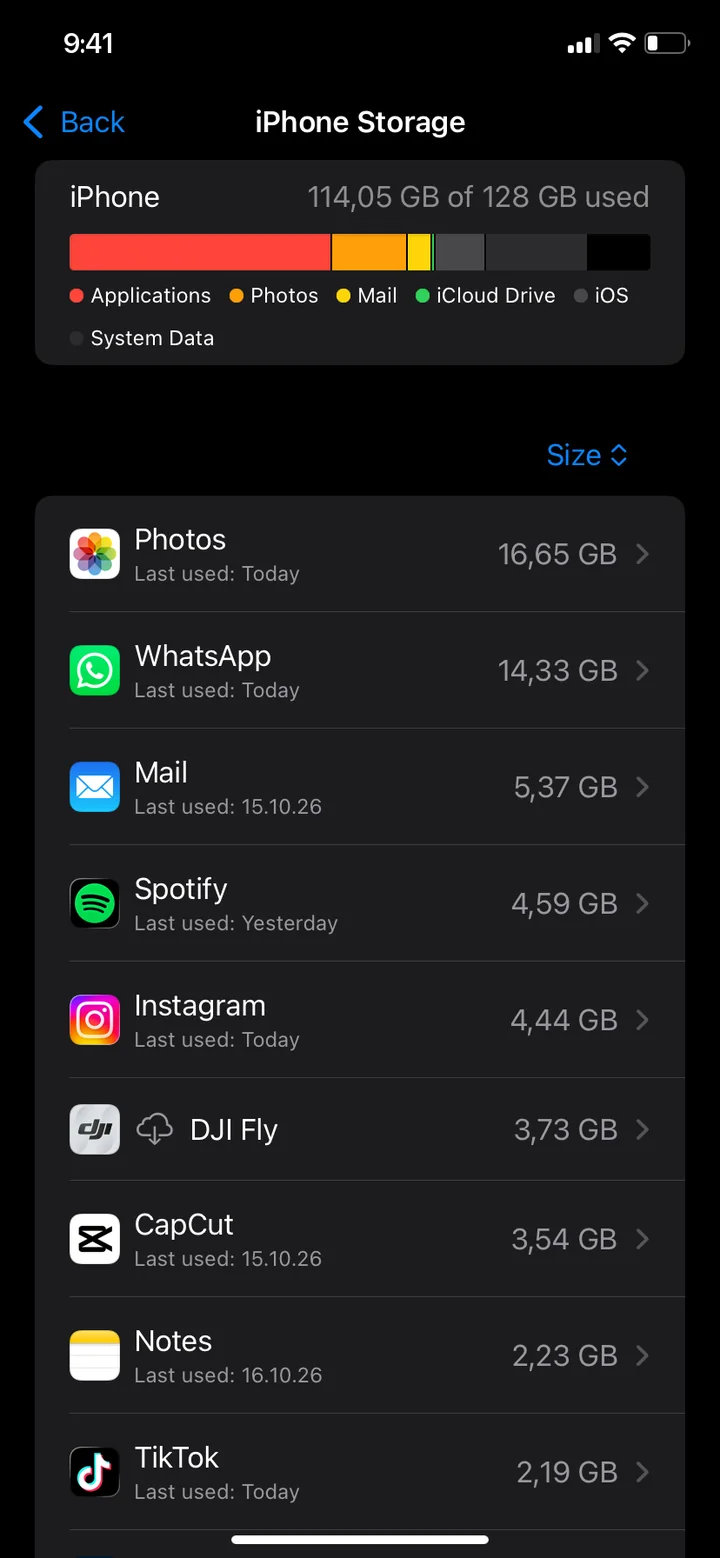
- Photos: photos, videos, screenshots and screen recordings. Often the biggest item.
- Apps: the apps plus their data, such as games, streaming downloads or offline maps.
- Messages: photos and videos from iMessage chats.
- iOS and System Data: the operating system, caches and temporary files. They can’t be deleted directly.
If Photos is at the top, steps 1 to 5 help you most. If apps lead the list, go straight to steps 6 and 7.
1. Delete large videos first
A single video can take as much space as hundreds of photos. According to the iPhone’s camera settings, one minute of video takes roughly:
| 1 minute of video | Approximate size |
|---|---|
| 1080p at 30 fps (default) | about 60 MB |
| 1080p at 60 fps | about 90 MB |
| 4K at 30 fps | about 170 MB |
| 4K at 60 fps | about 400 MB |
| Slo-mo 1080p at 240 fps | about 480 MB |
A photo, by contrast, is usually just a few megabytes. In the Photos app you find all videos under Collections → Media Types → Videos, each with its length. That is a good first hint, but slo-mo and 4K videos are large even when short.
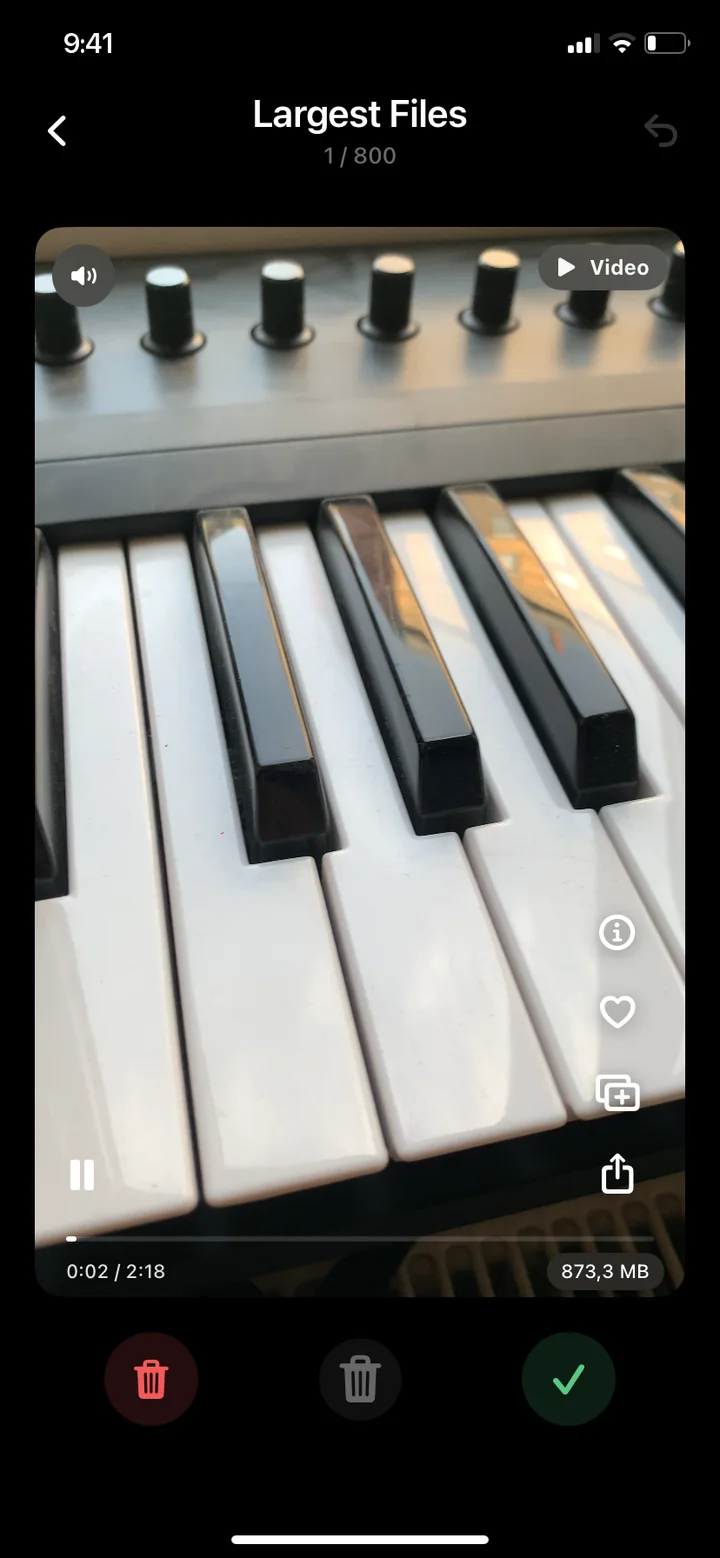
A cleanup app like PhotoDelete gets you there more directly: “Largest Files” (Pro) shows your photos and videos together, sorted by size, largest first. Swipe left to delete and right to keep, and see how much storage you will free up before anything is deleted.
2. Clear out duplicate and similar photos
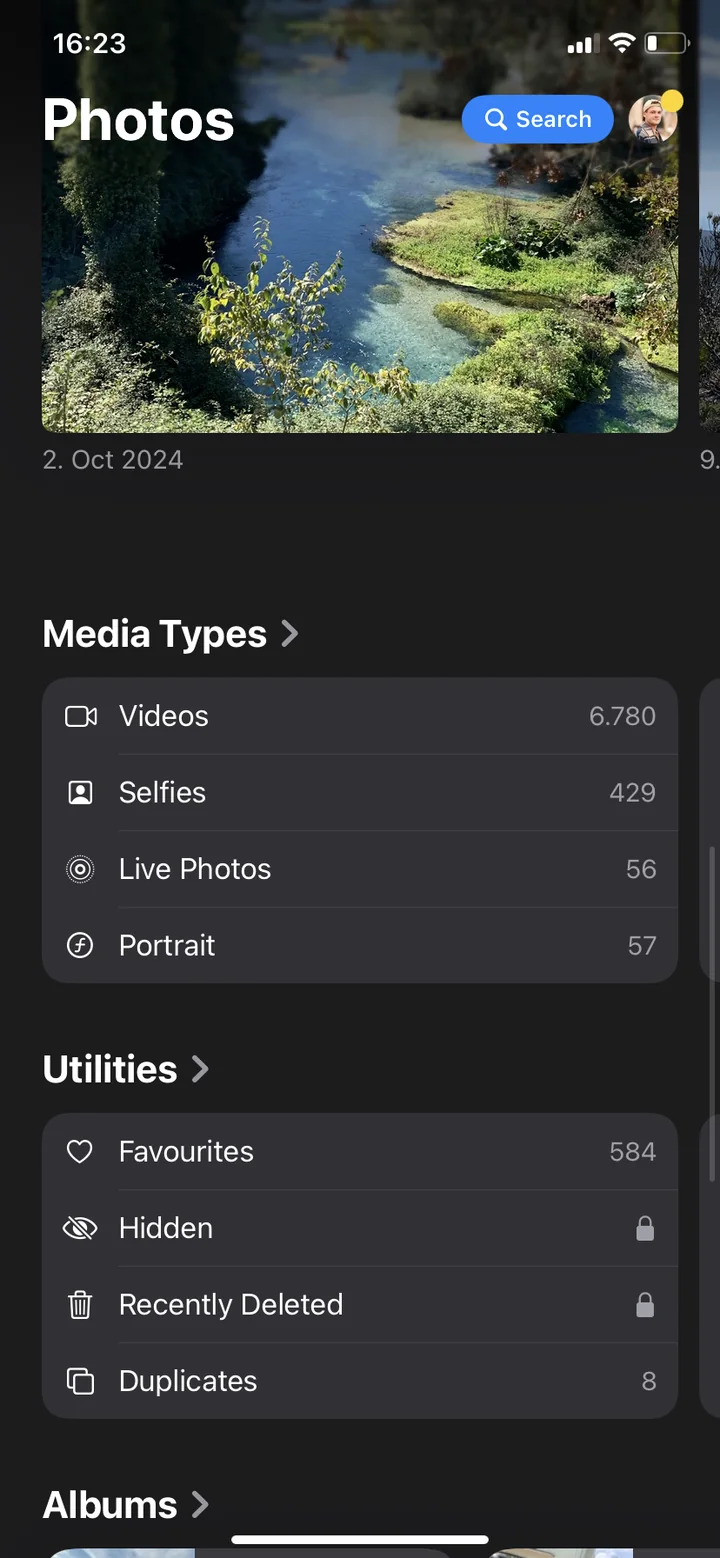
The Photos app collects exact copies under Collections → Utilities → Duplicates. Tap Merge there and your iPhone keeps the best version. Similar shots of the same moment, such as five takes of a group photo or bursts, are not in that album. PhotoDelete groups them under “Duplicates” (Pro) and suggests which one to keep.
Our guide How to delete duplicate photos on iPhone shows how.
3. Delete old screenshots and screen recordings
Screenshots are usually needed only briefly, but they pile up over the years. Screen recordings are videos and correspondingly large. You find both in the Photos app under Collections → Media Types: open Screenshots or Screen Recordings, tap Select and mark what can go. Our guide How to delete photos on iPhone shows how to select many at once.
4. Empty “Recently Deleted”
This is the step most people forget. Deleted photos and videos stay in the Recently Deleted album for up to 30 days and keep using storage on your iPhone during that time.
- Open the Photos app and tap Collections.
- Scroll down to Utilities and tap Recently Deleted.
- Unlock the album with Face ID, Touch ID or your passcode.
- Tap Select and then Delete All.
“Delete All” empties the whole album, including photos you deleted earlier. Whatever you delete here can’t be recovered. Take a quick look first.
5. Optimize iPhone Storage (with iCloud Photos)
If you use iCloud Photos, your iPhone can keep the originals in iCloud and store only space-saving versions on the device. Open Settings → [your name] → iCloud → Photos and choose Optimize iPhone Storage. This often saves several gigabytes without deleting a single photo.
If your iCloud storage is full too, see How to delete photos from iCloud and free up iCloud storage.
6. Delete or offload apps you no longer use
Under iPhone Storage every app shows how much space it uses and when you last used it. Tap an app and you have two options:
- Offload App removes only the app. Your data and documents stay, and it downloads again the next time you tap it. Good for apps you rarely use.
- Delete App removes the app and all of its data. For apps you don’t need anymore.
iPhone Storage often also suggests offloading unused apps automatically. From then on this happens by itself when storage runs low.
7. Clear downloads and cache in large apps
With many apps it is not the app itself that is large but what it stores. The “Documents & Data” figure shows how much that is when you tap an app under iPhone Storage.
- Streaming apps like Spotify or Netflix: delete downloaded titles in the app.
- WhatsApp: under Settings → Storage and Data → Manage Storage in WhatsApp, clear large files and whole chats.
- Messages: review and delete large attachments under iPhone Storage → Messages.
- Social media apps like Instagram or TikTok: if an app has no option to clear its data, deleting and reinstalling it often helps. Make sure you know your login first.
Keep your storage from filling up again
- Record video in 1080p: under Settings → Camera → Record Video, 1080p at 30 fps is enough for everyday videos. It needs about a third of the space of 4K.
- Stop WhatsApp saving images: see Stop WhatsApp saving photos to your camera roll.
- Back up your photos regularly: copy them to a computer and you can delete on your iPhone with peace of mind. Here is how for a Windows PC and a Mac.
Common mistakes
- Forgetting Recently Deleted: without this step, deleted photos keep using storage for up to 30 days.
- Deleting without a backup: with iCloud Photos on, a deleted photo is also gone from iCloud and all your devices.
- Starting with small photos: deleting lots of small photos one by one takes long and often frees up less than a few large videos.
- Overlooking apps: if apps lead the list, deleting photos helps little. Tackle unused apps and app data first.