
First: check two settings
Download originals (with iCloud Photos)
If Optimize iPhone Storage is on, your iPhone only holds space-saving versions and the originals are in iCloud. Switch to Download and Keep Originals under Settings → [your name] → iCloud → Photos first and wait until everything has downloaded. Otherwise you only transfer the small versions.
Transfer format
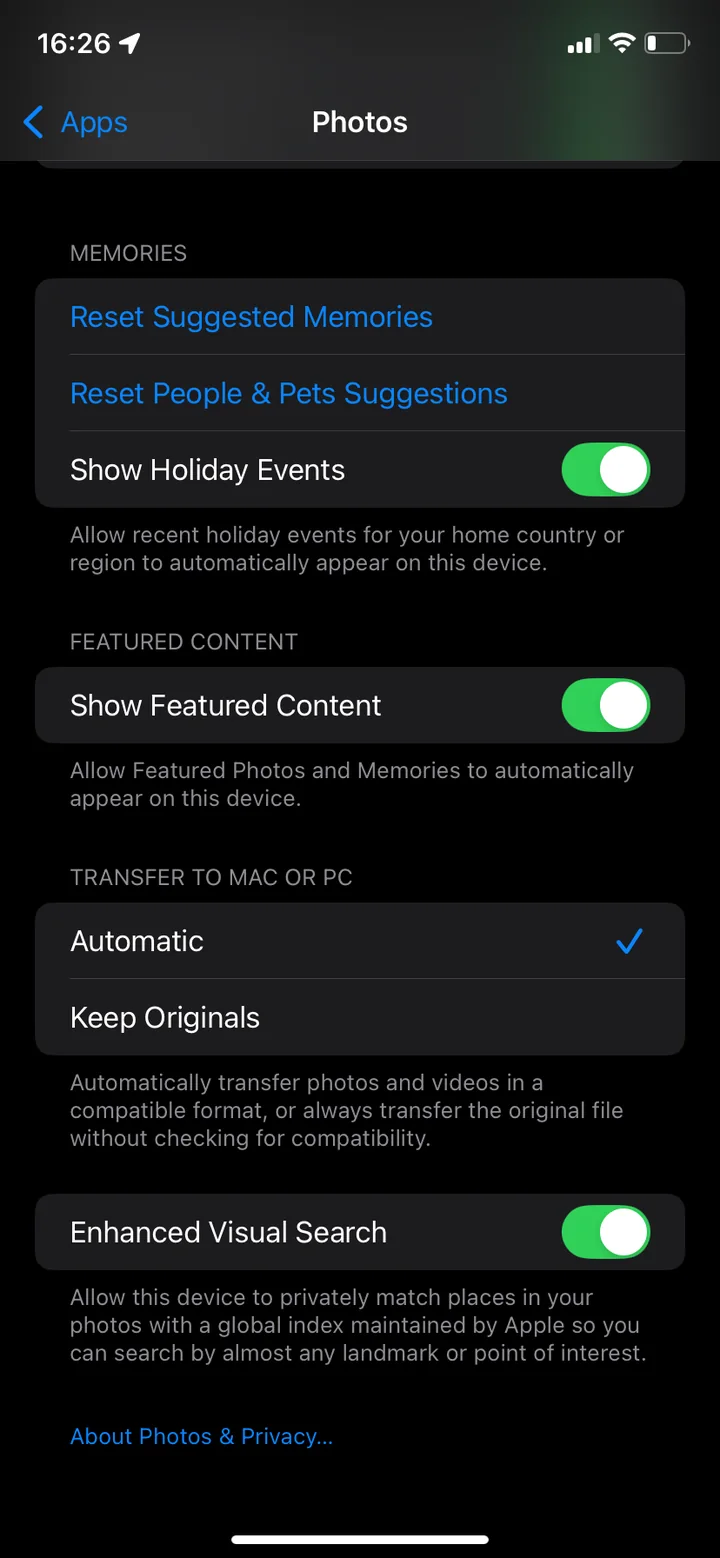
Your iPhone usually stores photos in the space-saving HEIF format (.heic). Under Settings → Apps → Photos, at the bottom, Transfer to Mac or PC decides what happens: Automatic converts photos to a compatible format such as JPEG, Keep Originals transfers them unchanged.
Transfer with Microsoft Photos
- Install the Apple Devices app from the Microsoft Store on your PC.
- Connect your iPhone to the PC with a USB cable and unlock it.
- On your iPhone, tap Trust or Allow and enter your passcode.
- On the PC, open the Microsoft Photos app, choose Import and then your iPhone.
- Select the photos, choose the destination folder and start the import.
Alternatively: copy with File Explorer
You also find your iPhone in File Explorer under “This PC”. The DCIM folder contains your photos and videos in subfolders. Simply copy them to a folder on your PC.
If the transfer to your PC doesn’t work
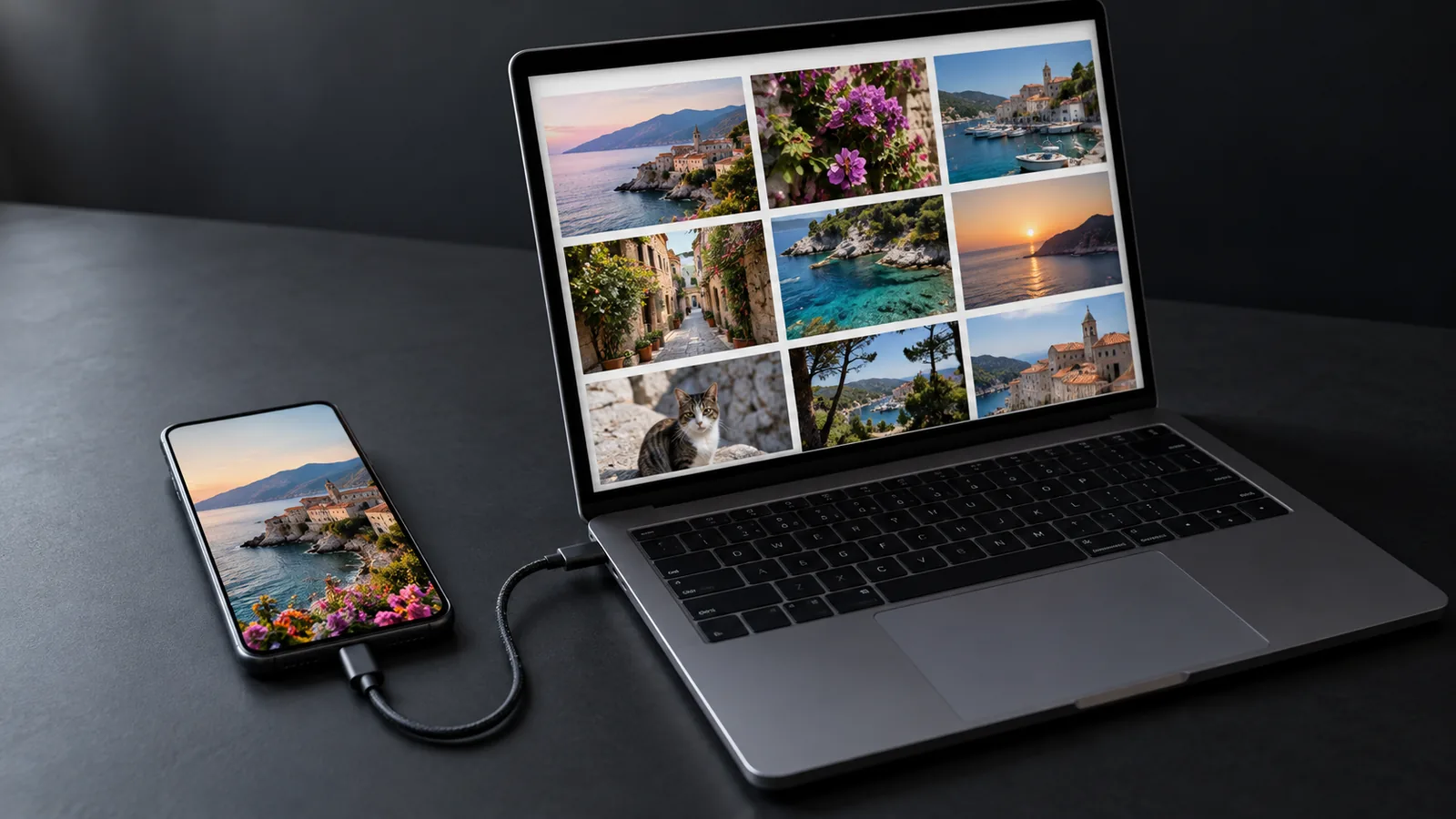
If your iPhone doesn’t show up in Microsoft Photos or File Explorer, these steps from Apple usually help:
- Unlock and confirm: Open the Apple Devices app, unlock your iPhone and tap Trust if asked.
- Check the cable: If your iPhone doesn’t make a sound or vibrate when you connect it, unplug the cable and check the charging port for debris. Otherwise try a different cable that supports data transfer, not just charging.
- Try another port: Plug the cable into a different USB port or try another PC.
- Update your software: Install the latest versions of Windows and iOS.
If you tapped Don’t Trust by mistake, go to Settings → General → Transfer or Reset iPhone → Reset → Reset Location & Privacy on your iPhone. This resets your location and privacy settings. The next time you connect, your iPhone asks again whether you trust the computer.
iCloud for Windows is not a backup
With iCloud for Windows you see your iCloud photos on your PC too. But it is a sync: delete on your iPhone and the photos disappear there as well. If you want to delete photos on your iPhone and still keep them, you need a copy as files in your own folder, as described above. More in How to delete photos from iCloud.
Check first, then delete
Before deleting anything from your iPhone, open a few photos and videos on your PC and check that the count matches. The safest approach is to keep important photos in two places, for example on your PC and on an external drive.
Free up space on your iPhone
Now you can clean up calmly. Instead of deleting everything, keep the photos you like to have with you. A swipe app like PhotoDelete helps here: you go through your library month by month with a swipe: left to delete, right to keep. With “Largest Files” (Pro) you start with the big videos that free up the most space.
Afterwards: empty Recently Deleted
Deleted photos and videos stay in the Recently Deleted album for up to 30 days. Only when you empty it under Photos app → Collections → Recently Deleted → Select → Delete All is the storage on your iPhone freed.
Common mistakes
- Deleting before checking: always verify first that everything arrived on your PC.
- Importing only previews: with Optimize iPhone Storage, download the originals first.
- HEIC files won’t open: set “Transfer to Mac or PC” to “Automatic”.
- Backing up in only one place: one broken drive and everything is gone. Important photos belong in two places.