
Turn off automatic saving in WhatsApp
- Open WhatsApp and go to Settings. Depending on your version, tap “Settings” or “You” in the bottom right.
- Tap Chats.
- Turn off Save to Photos.
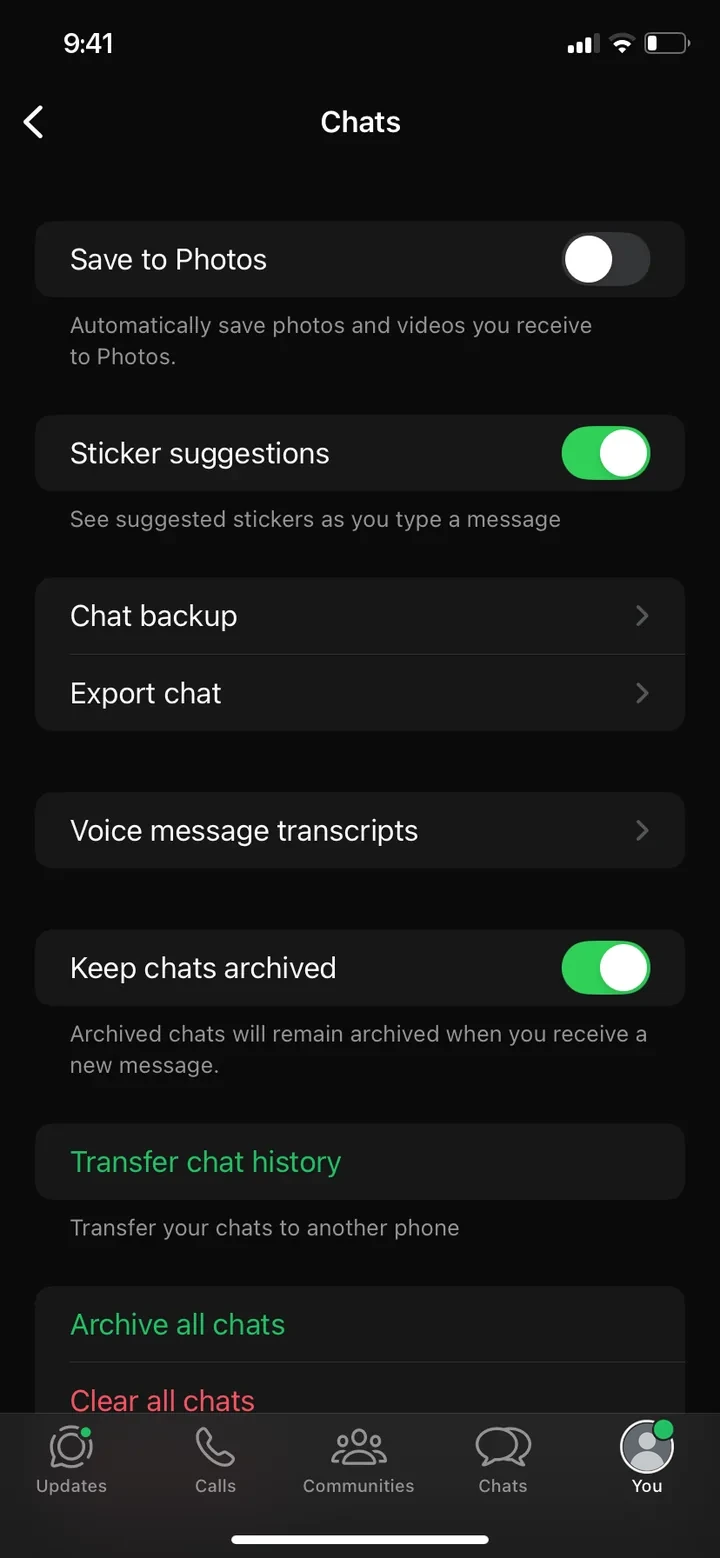
From now on, new photos and videos from chats no longer end up in your Photos app automatically. You can still see them in WhatsApp. To keep a single image, save it yourself: open the image in the chat, tap Share and choose Save.
Turn it off for individual chats only
Want to keep photos from your family chat but not from big groups? You can set this per chat:
- Open the chat or group.
- Tap the name at the top.
- Tap Save to Photos and choose to never save for this chat.
WhatsApp no longer saves images to your camera roll?
Want the opposite, and WhatsApp has stopped putting images in the Photos app? Check these three things:
- The switch: Under Settings → Chats, Save to Photos must be on.
- The setting in the chat: In the chat, tap the name at the top, then Save to Photos. If the chat is set to never save, that applies even with the switch on.
- Disappearing messages: If they are on in the chat, WhatsApp Help says its media isn't saved to your photos.
Free up storage in WhatsApp itself
Your library and your chats are separate: delete an image in the Photos app and it stays in the WhatsApp chat, and vice versa. You see how much space WhatsApp itself uses under Settings → Storage and Data → Manage Storage in WhatsApp, where you can clear large files and whole chats.
Under Settings → Storage and Data you also choose whether photos, videos and documents auto-download never, on Wi-Fi only or always. More ways to free up space are in our guide iPhone storage full.
Delete saved WhatsApp images from your camera roll
Turning the switch off only affects new images. Everything WhatsApp has saved so far stays in your library.
All at once via the “WhatsApp” album
WhatsApp creates its own WhatsApp album in the Photos app. You find it under Collections with your albums:
- Open the WhatsApp album.
- Tap Select and mark all images.
- Tap the trash icon and choose Delete.
Really choose “Delete”, not just “Remove from Album”. Otherwise the images only disappear from the album but stay in your library.
Selectively with a swipe
Among the WhatsApp images there are often photos you want to keep, such as pictures of friends or family. Then deleting everything is not a good idea. This is easier with a swipe app like PhotoDelete: you go through your library month by month and decide on every image in a second: swipe left to delete, swipe right to keep.
Afterwards: empty “Recently Deleted”
Deleted images stay in the Recently Deleted album for up to 30 days. Your iPhone storage is only freed once you empty it under Photos app → Collections → Recently Deleted → Select → Delete All.
Common mistakes
- Only flipping the switch: the old images stay in your library until you delete them.
- “Remove from Album” instead of “Delete”: the images then stay in your library.
- Deleting all WhatsApp images blindly: there are often photos among them that matter to you.